Everyday online activity can expose more protect personal information online than you intend: account logins reveal what you use, while app permissions and location data can show where you go. You can reduce that risk with practical habits, though no single tool can block every threat.
Start with the accounts that hold the most sensitive information, then review what you share and how your devices are secured. First, make your key accounts harder to access with unique passwords and an extra sign-in step.
How to protect personal information online, starting with your accounts
Begin with accounts that could expose the most sensitive information: your email, banking, and social media. Email often provides a path to reset other passwords, while financial and social accounts hold personal and payment details.
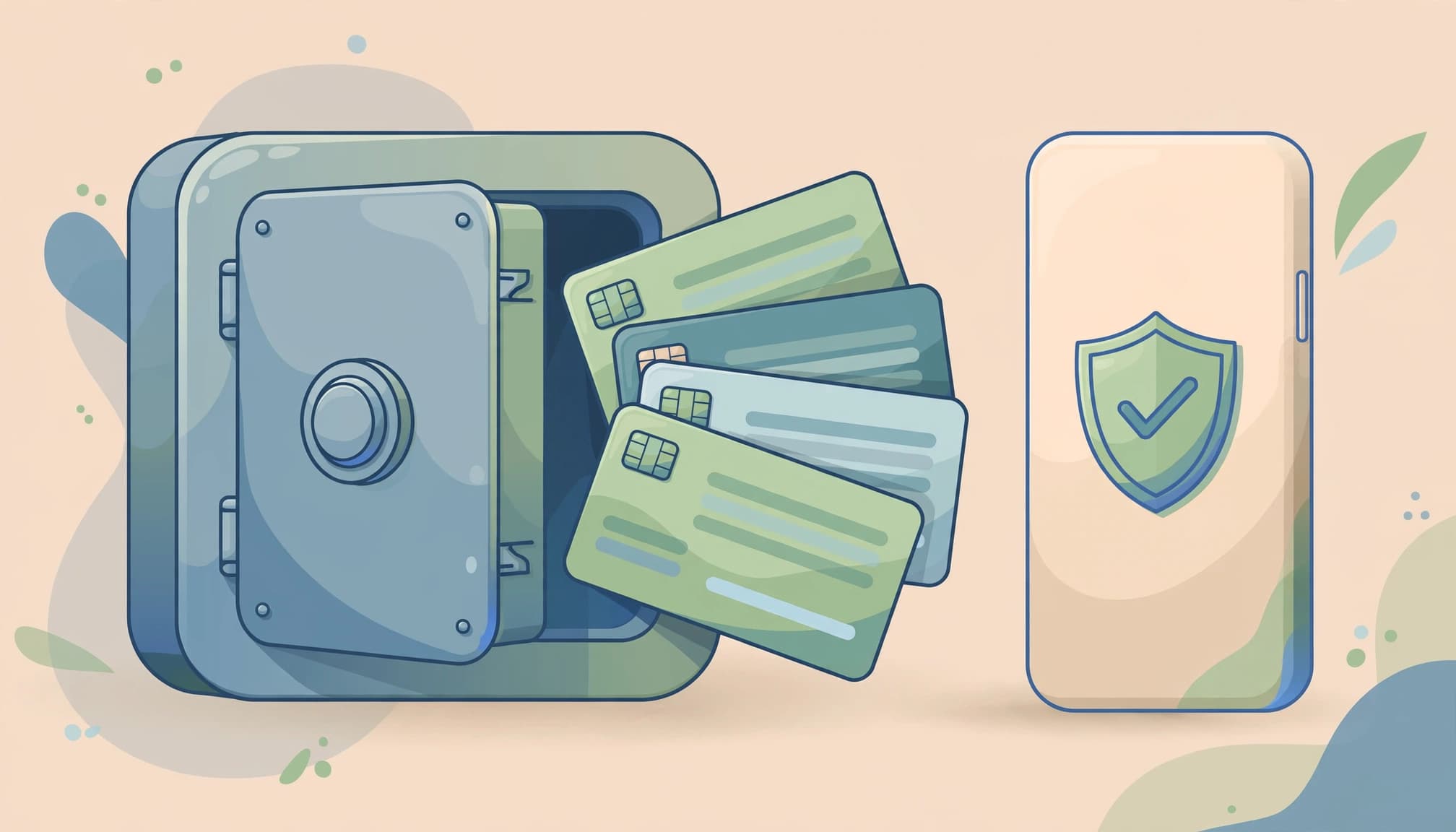
Use unique passwords and a password manager
Reusing one password puts multiple accounts at risk. If a breach exposes that password, attackers may try it on your email, bank, and other services. Give each account its own password to limit the damage if one login is compromised.
A reputable password manager can generate and store strong, unique passwords, so you don’t have to memorize them all. Choose a strong, unique master password or passphrase for the manager, and protect it carefully. The FTC’s advice on strong passwords covers password managers and other ways to secure accounts.
Turn on multifactor authentication
Multifactor authentication (MFA) adds another step after your password, making it harder for someone to sign in with stolen credentials alone. Enable it first on email, banking, and social media, then add it to other accounts that offer it.
When available, choose an authenticator app or a physical security key. Text-message codes are less secure, but they still add protection compared with using a password alone. CISA explains the options in its guide to turning on MFA.
Share less data on social media, apps, and websites
Routine app use and public posts can reveal personal details to companies and strangers. Reduce that exposure by sharing less, limiting access, and checking privacy controls regularly.
Review privacy settings and app permissions
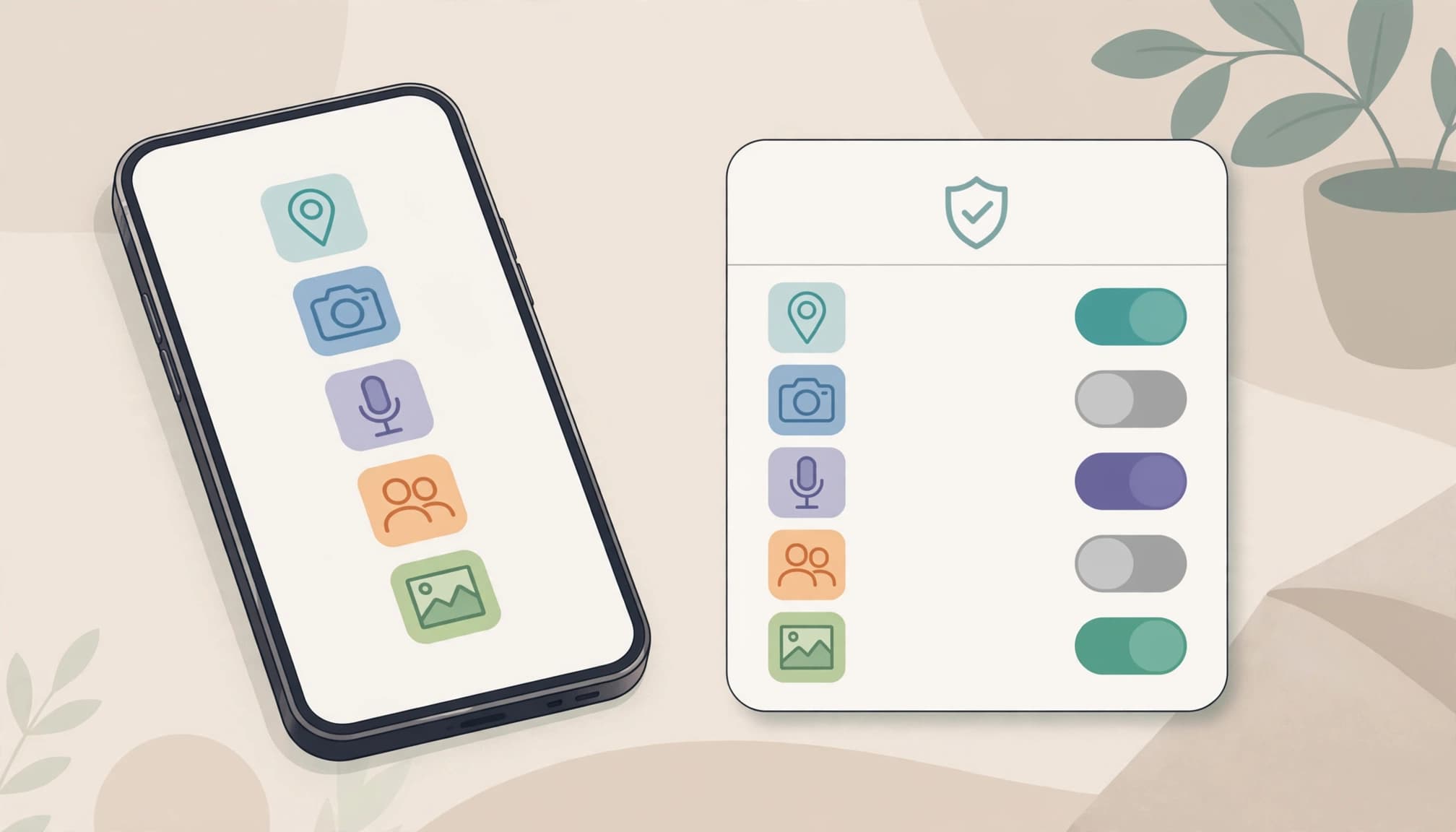
Check which apps can access your location, camera, microphone, contacts, and photos. Allow only what an app needs to work. For example, a photo editor may need access to selected images, but it likely doesn’t need your contacts or precise location. You can find permission controls in iPhone privacy settings and Android privacy settings.
Review permissions again after installing apps or updating your phone. If an app no longer needs access, turn it off. The FTC’s guide to how apps collect information explains why these settings matter.
Limit public details and tracking
Before posting, leave out details that could expose your home address, daily routine, travel plans, or account recovery answers. Also review who can see your profile, posts, and friend list. A private profile can limit casual viewing, though it can’t prevent others from copying or sharing what you post.
In addition, use your browser’s privacy controls to block or limit cookies and cross-site tracking. When an app or website offers a clear choice to opt out of data collection or targeted advertising, use it. Share only the information required to access a service, and skip optional profile fields when you can.
Browse, shop, and connect more safely
Everyday browsing, shopping, and messaging can expose personal information when a link leads to a fake site or a device stays unprotected. Build a few checks into your routine, and secure the devices and network you use most.
Spot phishing and use secure sign-ins
Treat unexpected messages about account problems, deliveries, payments, or prizes with care, especially when they demand quick action or personal details. Check the sender and the destination of any link, but remember that a familiar name or logo can be copied. CISA’s phishing warning signs can help you spot suspicious messages.
Instead of following a message link, open the company’s app or type its known website address into your browser. When shopping, check the domain before entering payment or contact details. On public Wi-Fi, avoid sensitive transactions when you can; a VPN alone doesn’t make a suspicious site safe or protect every account. Use cellular data for sensitive activity if the network feels untrusted.
Protect devices and home Wi-Fi
Install operating system, browser, and app updates when they’re available, since updates often fix security weaknesses. Set a screen lock with a PIN, password, or biometrics, and turn on device encryption if your phone or computer offers it. These steps can limit access if someone gets hold of your device.
At home, change both the router’s default Wi-Fi password and its administrator password. Use WPA2 or WPA3 encryption if your router supports it, and install router updates. The FTC’s home network security advice explains how to replace default passwords and encrypt your network.